 Carvomi
Using the car screen
Home
Your phone’s apps are laid out to fit the car screen. The dock at the bottom puts car-friendly apps first, like maps, music and phone. A clock and what’s playing also show on the home screen.
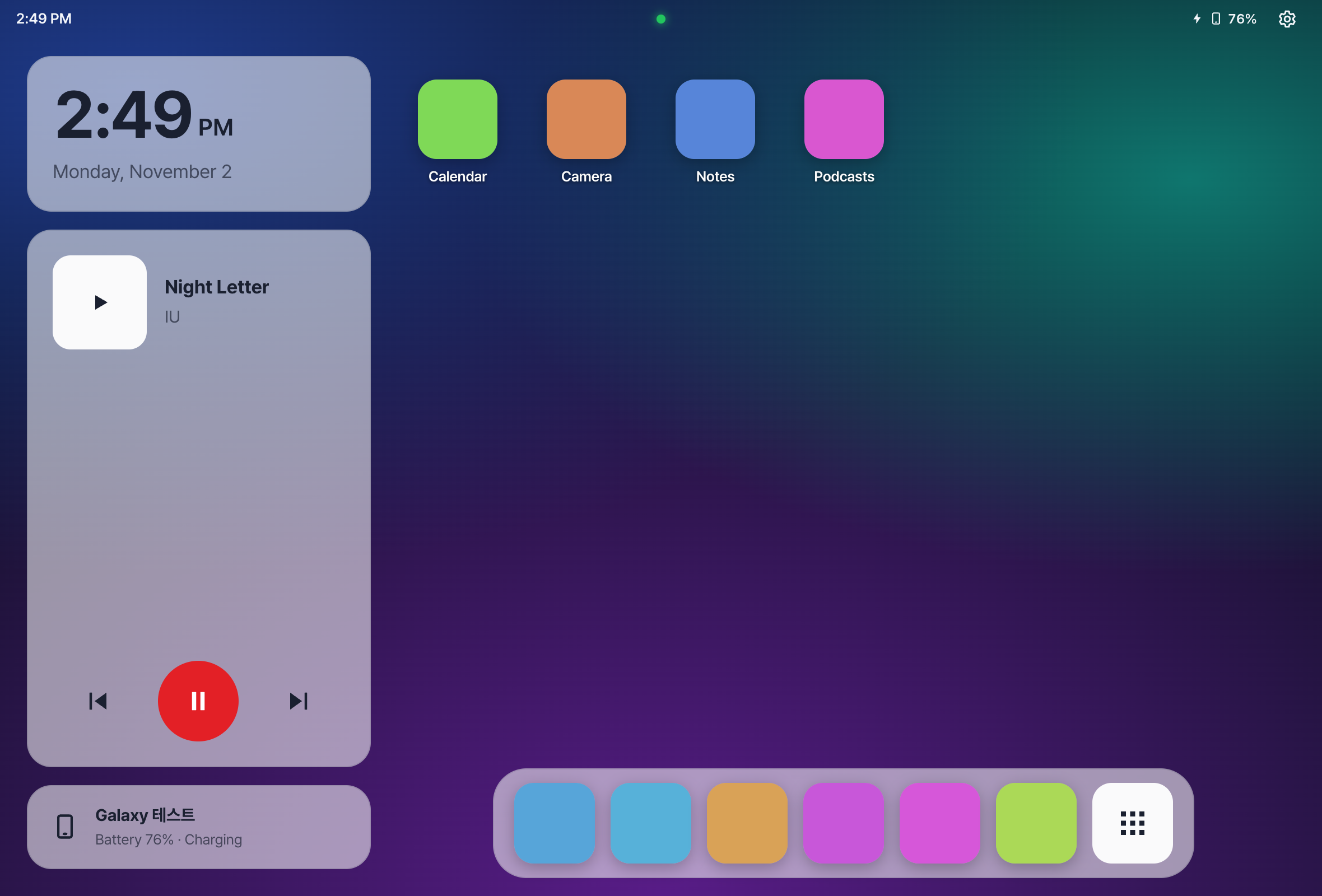
All apps
- Tap the 9-dot button at the right of the dock to see every app.
- Search by app name in the box at the top.
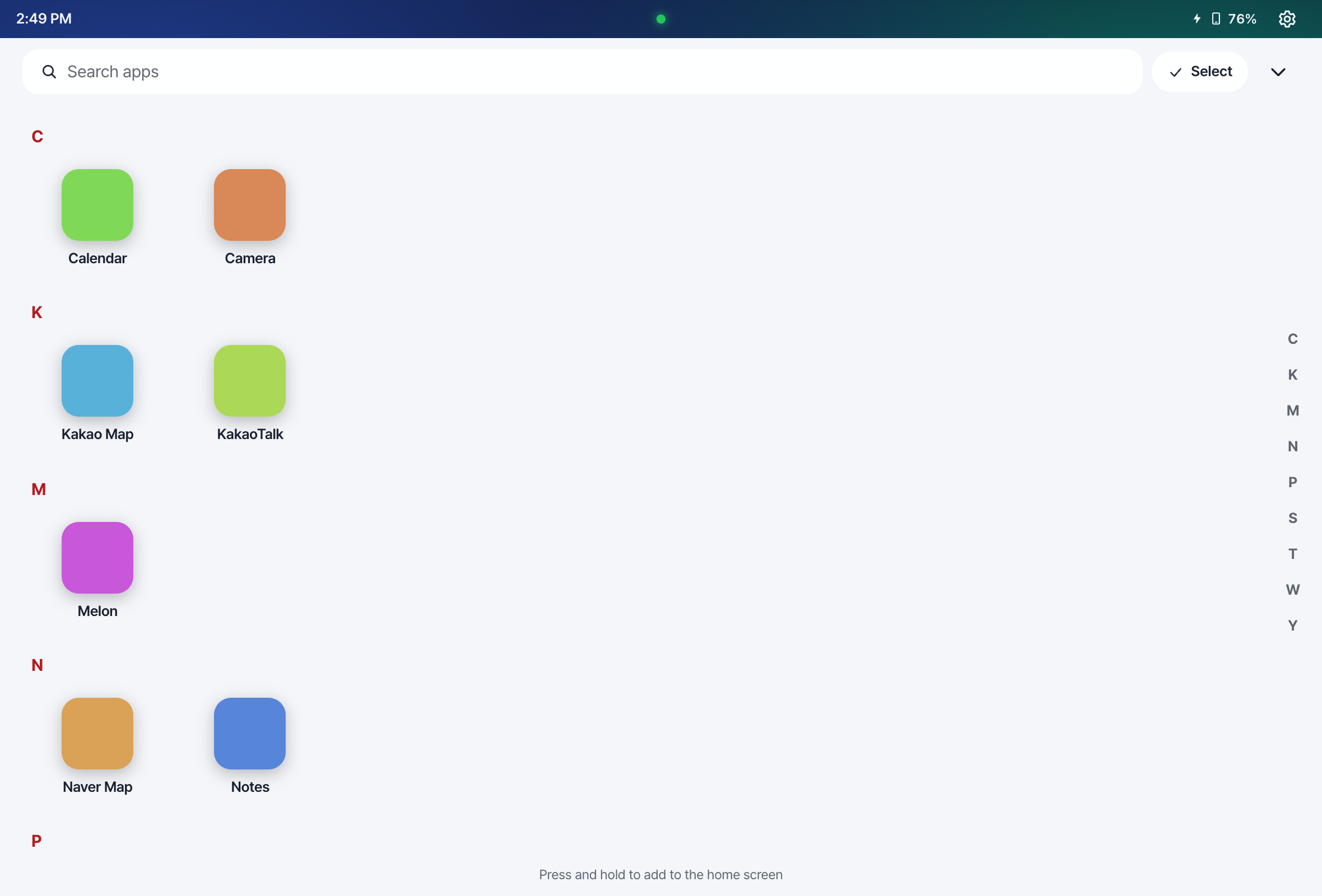
Edit the home screen
- Press and hold an icon to start editing.
- Drag icons to move them. Drop one on another to make a folder.
- Moved something by mistake? Tap “Undo”. The layout is saved on your phone.
Use an app
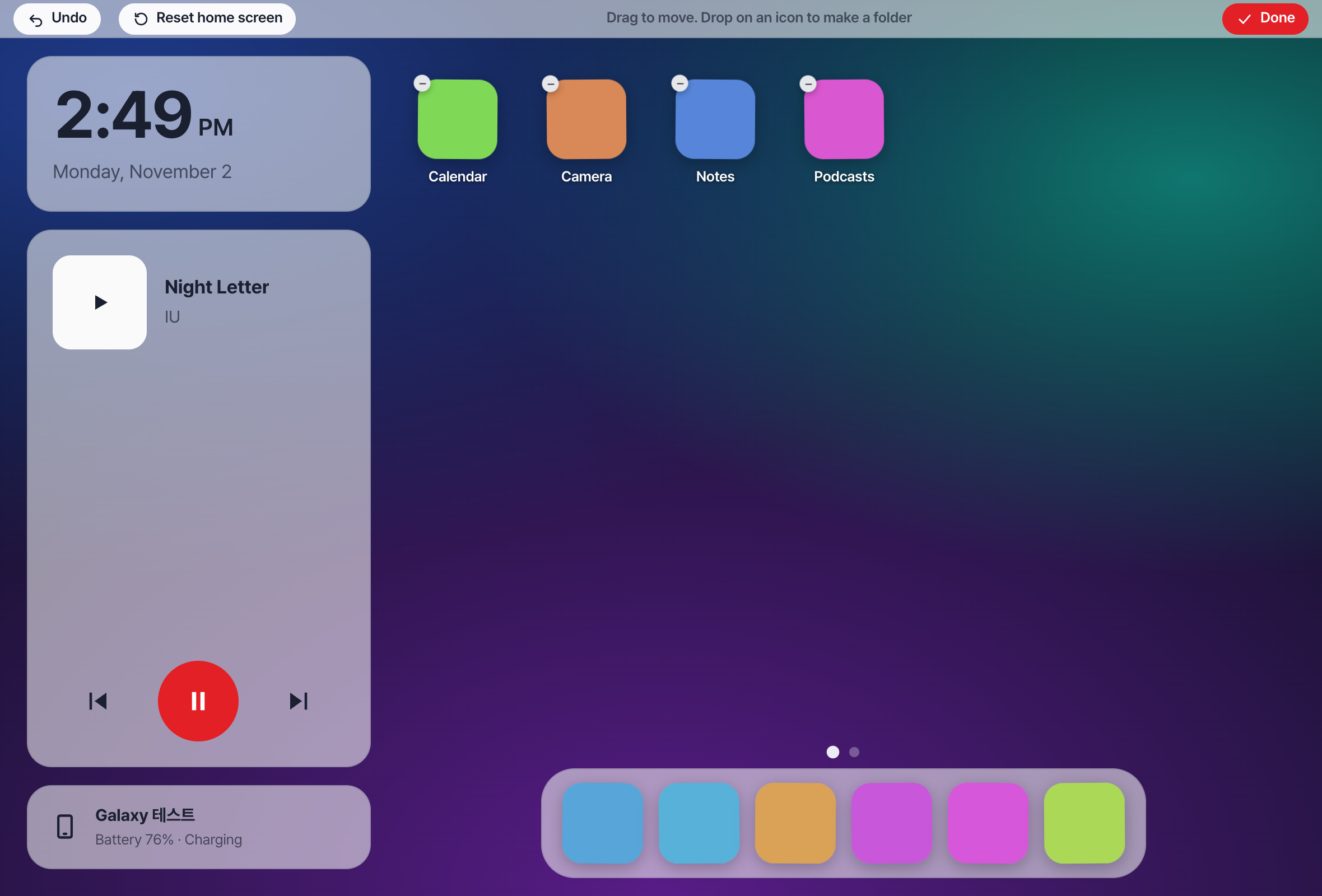
- Tap an icon to show that app on the car screen.
- The bar on the left has Home, Back and your running apps.
- Tap the handle at the bottom of the bar to open the menu (keyboard, all apps, refresh, settings, split screen and more).
- Close a running app with ×, or close them all with “Close all”.
Split screen
Show two apps side by side.
-
Tap “Split screen”
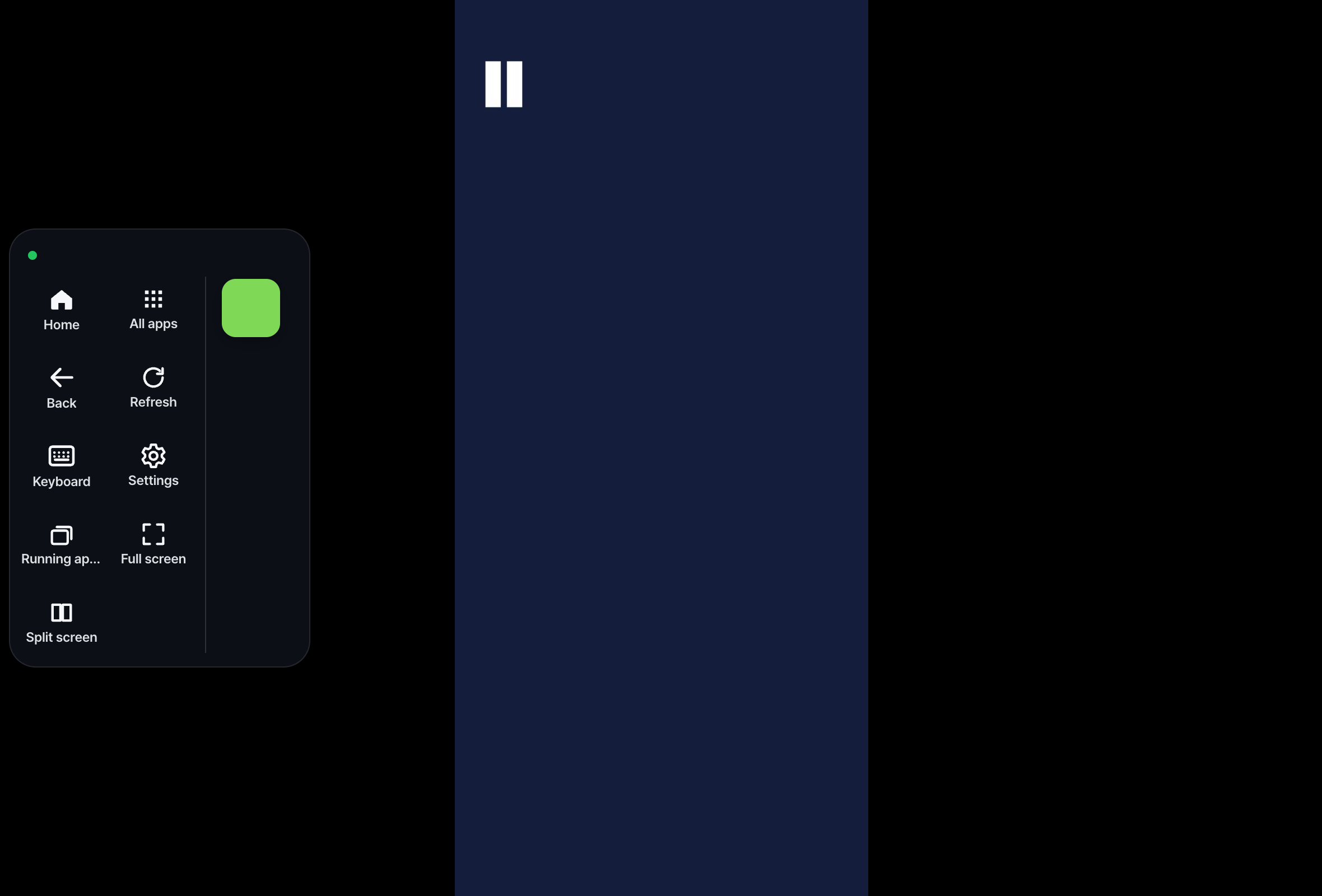
While using an app, tap Split screen in the menu. The current app stays on the left.
-
Pick the app for the right side
Choose from recent apps, all apps or search.
-
Change the size
Drag the bar in the middle. It snaps to 1/3, 1/2 and 2/3. Drag it all the way to the edge and let go at “Release to close” to close that side.
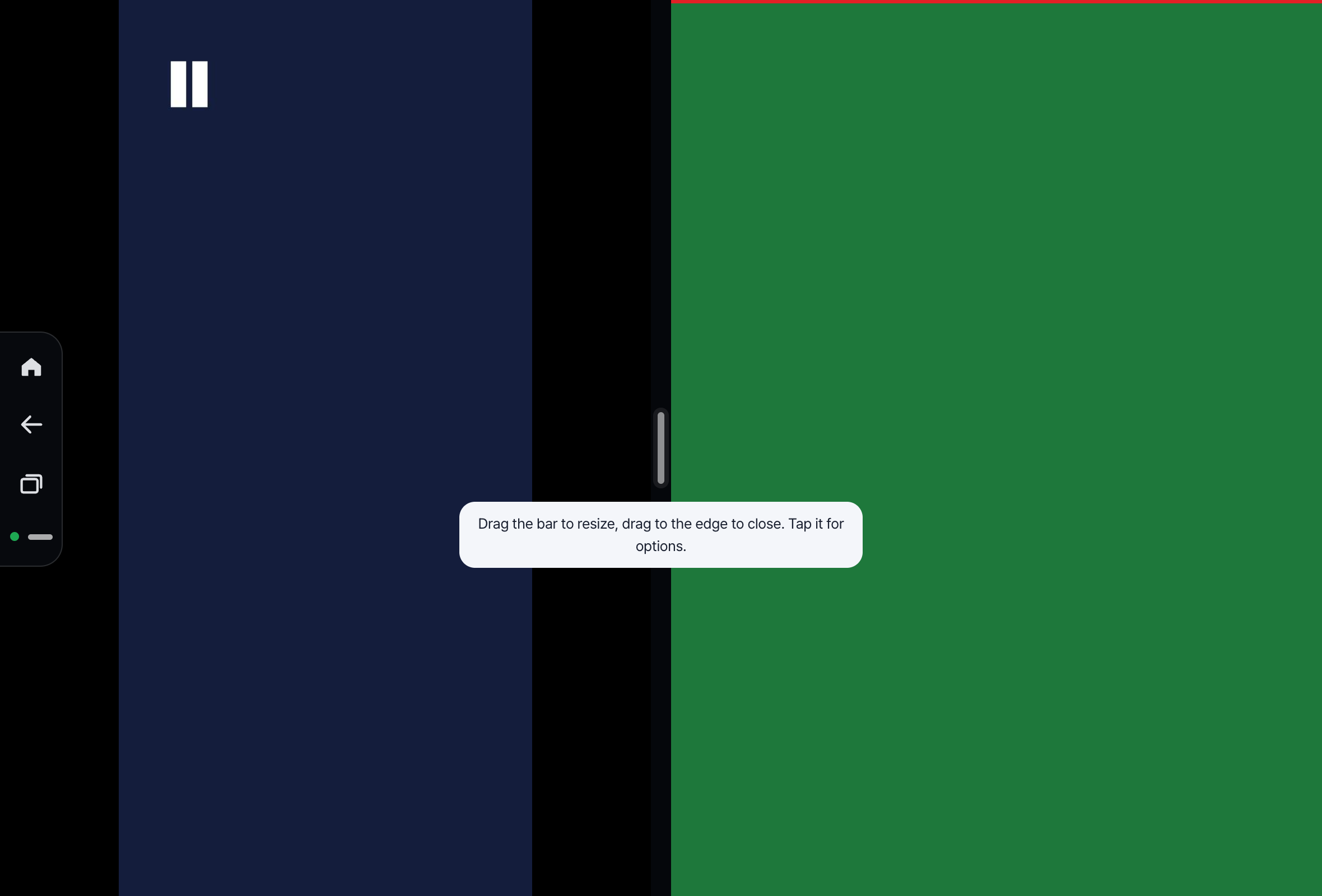
💡 Tap the middle bar to swap sides or show only the left or right app. To go back to one app, tap the same button again (Single screen).
Screen settings
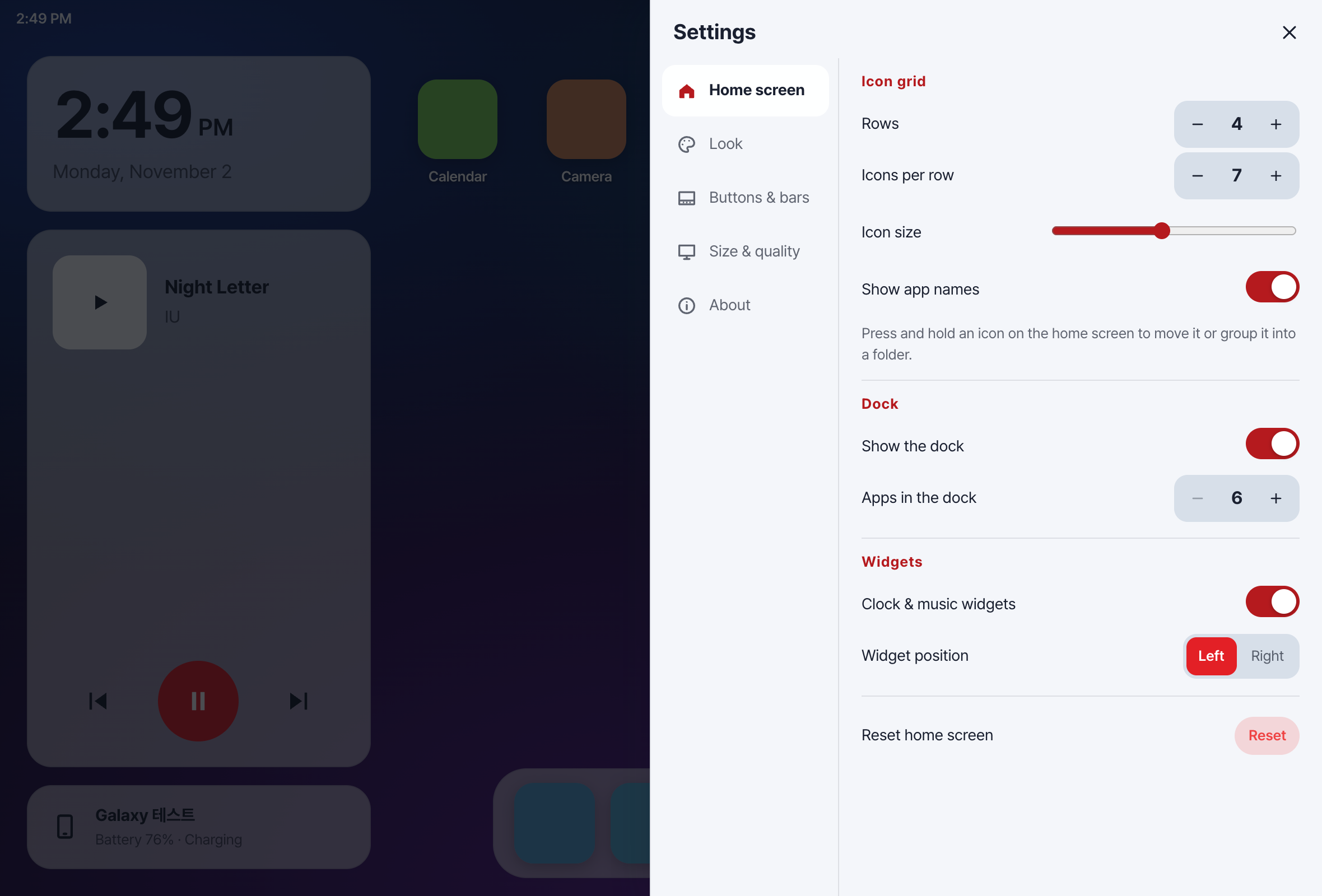
Tap ⚙ at the top right, then pick a section on the left.
- Home screen: rows, icons per row, icon size, app names, dock, clock and music widgets
- Look: light or dark, icon shape, accent color, wallpaper
- Buttons & bars: the Back/Home button row under apps, how to open the menu
- Keyboard: which keyboard opens first
- Size & quality: screen scale
- About: connected phone, response time, app version
Wallpaper
In the car screen settings, go to Look → Wallpaper → “From phone photos” and pick a photo. Drag to move, pinch to zoom, rotate, then tap “Apply”. You can also pick one in the phone app: “Car screen wallpaper”.
Dedicated car screen (Android 11 or later)
After the one-time automatic setup, the car gets its own screen while your phone stays locked. The phone and the car screen work separately, and text on the car screen is larger.
- Size: choose from four sizes, from very small to large. Smaller fits more on the screen. Change it in the car screen settings → Size & quality → “Screen scale”, or in the phone app: Settings → “Car screen resolution”.
- After restarting your phone: it gets ready again by itself once the phone joins your home Wi-Fi or another Wi-Fi network you use often. If you drive before then, the car simply shows your phone screen — nothing to do.
- On a Wi-Fi network it hasn’t seen before, you may get “Prepare the dedicated car screen?”. Tap it, and if the system asks, choose ‘Always allow on this network’.
Still stuck? Email carvomi@gmail.com with your diagnostic code (DX-…).