 Carvomi
Troubleshooting
Start with “Readiness”
Tap Readiness on the app’s home screen. It checks each item for you, and anything that needs attention has a Fix button. Tap it and follow the steps.
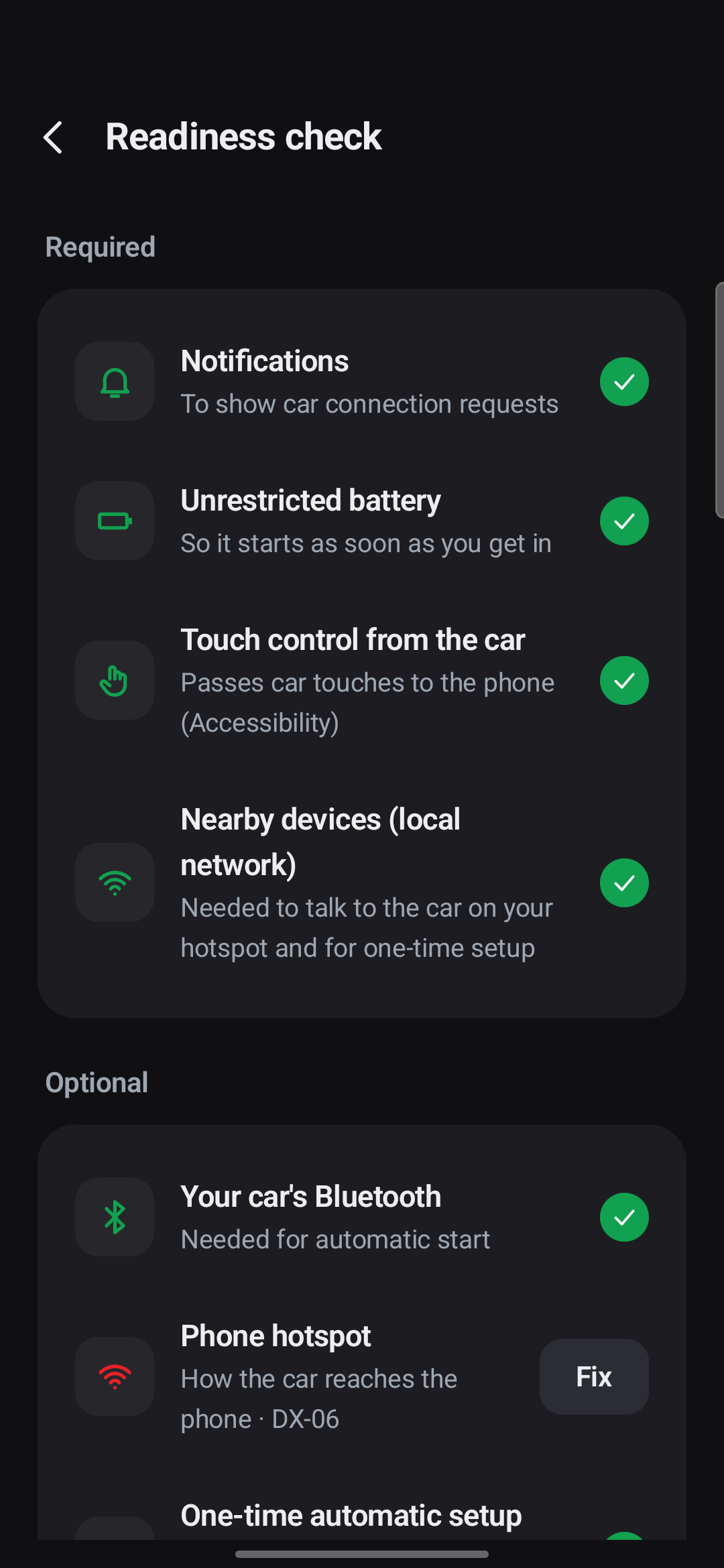
💡 When you contact us, include the diagnostic code (DX-…) shown next to an item. It helps us help you much faster.
Common problems
| Problem | What to do |
|---|---|
| The address won’t open in the car’s browser | Check that your phone’s hotspot is on and the car is connected to it. The address is car.carvomi.com. |
| Touch doesn’t work from the car | Readiness → “Touch control from the car” → Fix. If it’s blocked as a ‘restricted setting’: App info → ⋮ → Allow restricted settings. |
| It asks to “Start screen sharing” every time | Run the one-time automatic setup (Android 11 or later). |
| The dedicated car screen says it’s using phone mirroring | On your home Wi-Fi or another trusted Wi-Fi network, open app Settings → “Prepare now”. |
| It doesn’t turn on by itself | In app Settings, check that “My car” is chosen, and that “Unrestricted battery” is OK in Readiness. If you “Force stop” the app, automatic start pauses until you open the app once (an Android rule). |
| A phone setting stayed changed | App Settings → Phone settings → “Restore now”. |
| I want to start over | App Settings → Phone settings → “Reset all settings”. This erases your car, approved screens, home layout, wallpaper and settings, then closes the app. Run the one-time setup again. |
| Netflix shows a black screen | Copy-protected (DRM) video can’t be shown on another screen. Use the car’s own Netflix (Tesla Theater). |
No internet
If car.carvomi.com won’t open where there’s no internet (an underground car park, for example), open 203.0.113.1:2952 in the car’s browser.
Still stuck? Email carvomi@gmail.com with your diagnostic code (DX-…).